SlowMo UI Documentation
Overview
The SlowMo WPF application provides an intuitive graphical interface for creating slow-motion videos. This guide covers all aspects of the user interface.
Main Window
The main window is divided into several areas:
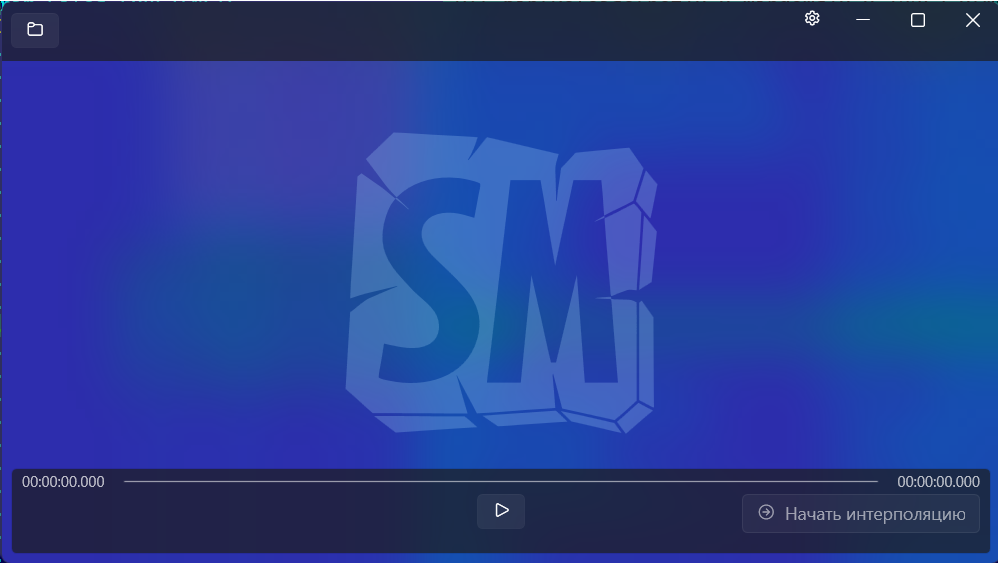
Key Areas
- Menu Bar - File operations, settings, help
- Toolbar - Quick access to common actions
- Video Preview - Shows loaded video
- Properties Panel - Video information and settings
- Status Bar - Processing status and progress
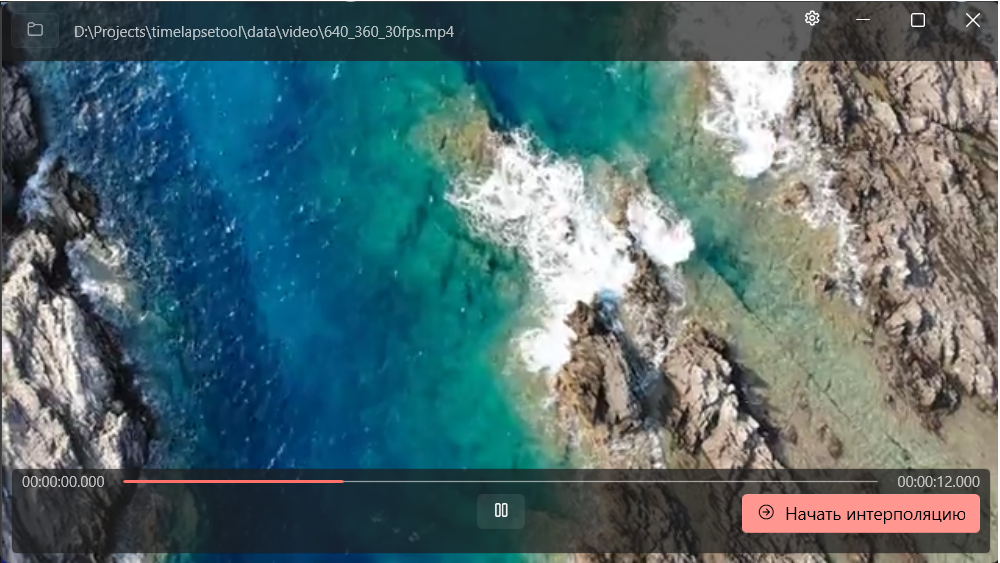
Opening a Video
To open a video file:
- Click File → Open Video or press Ctrl+O
- Select a video file (MP4, AVI, MKV, MOV)
- Wait for the video to load in the preview area
Settings Dialog
The settings dialog allows you to configure output parameters.
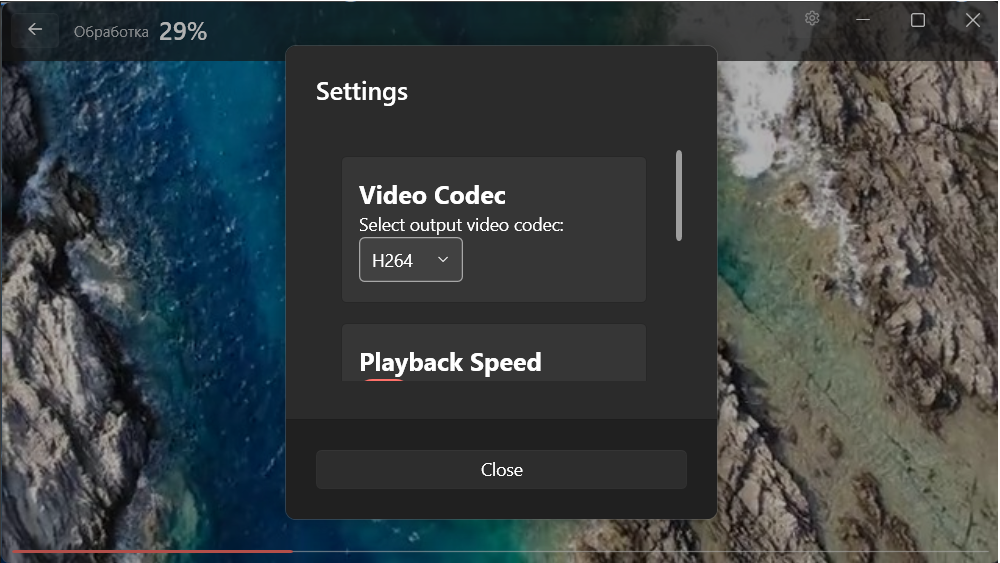
Output Settings
| Setting | Description |
|---|---|
| Interpolation Factor | How much to slow down the video (2x, 4x, 8x, etc.) |
| Interpolation Method | Algorithm used: Linear, Optical Flow |
| Output Format | Output file format: MP4, AVI |
| Output Quality | Video quality preset: Low, Medium, High, Ultra |
Processing View
During video processing, the application shows progress information.
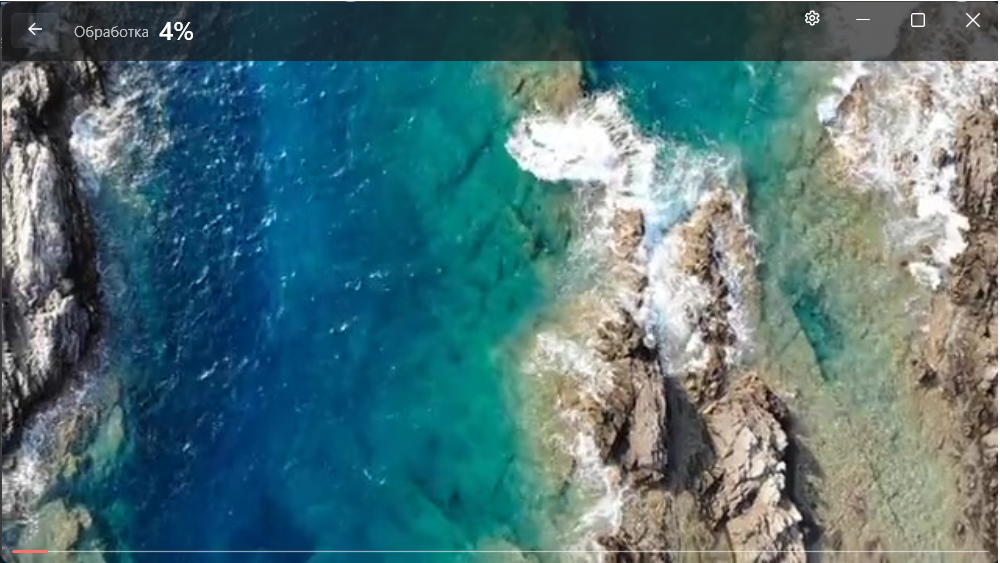
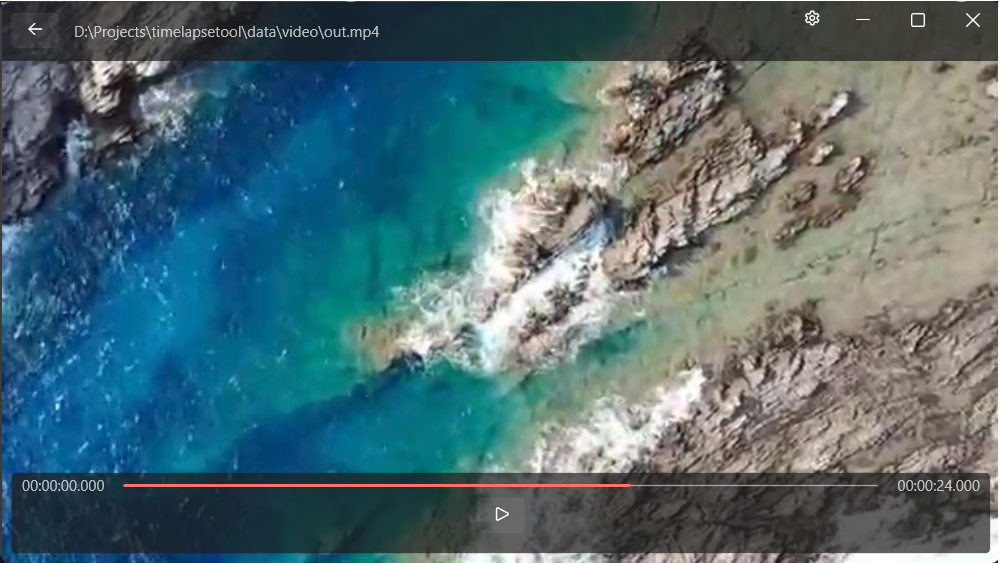
When processing is complete:
Keyboard Shortcuts
| Shortcut | Action |
|---|---|
| Ctrl+O | Open Video |
| F5 | Start Processing |
| Escape | Cancel Processing |